Team Management Pro Max
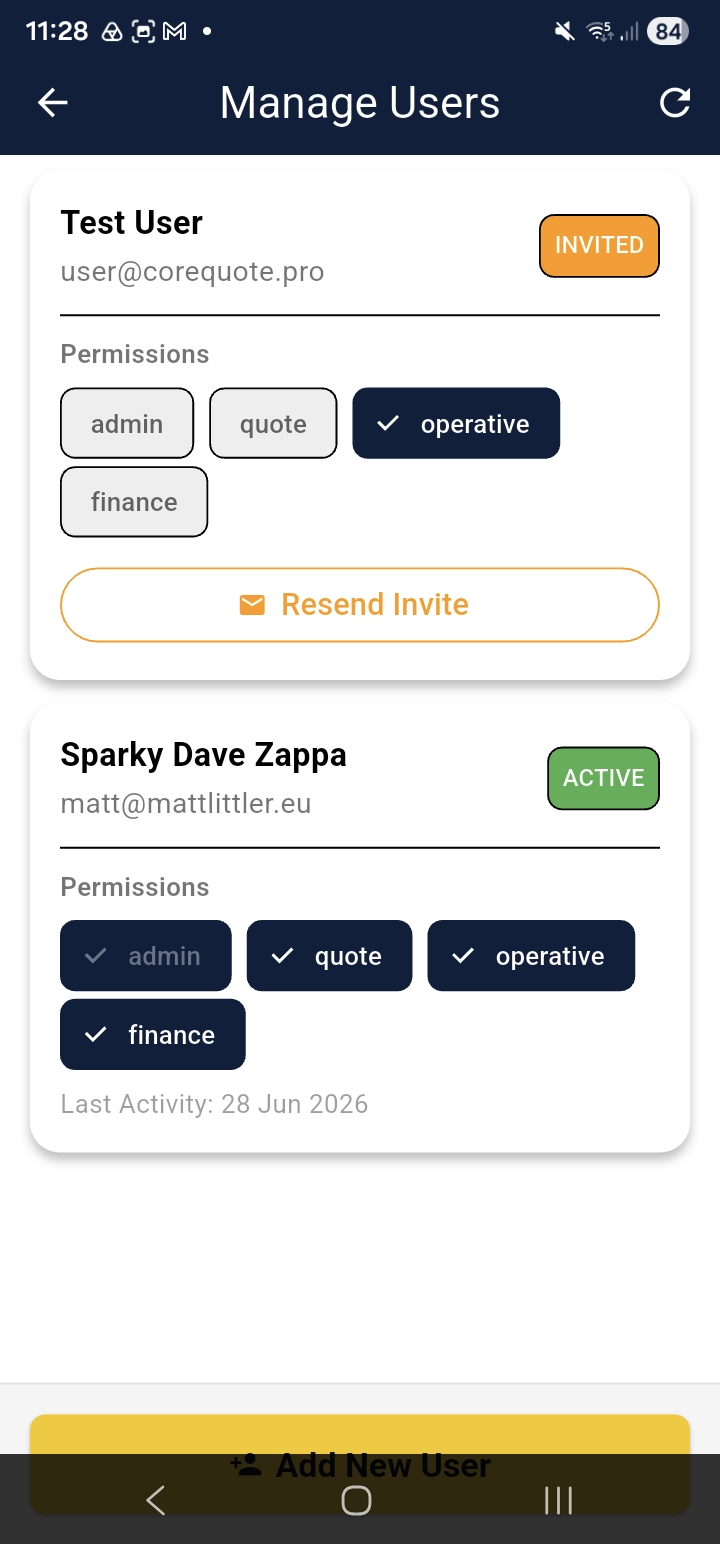
Pro and Max subscribers can invite additional users to share the same company account. Access via Home → Manage Users.
⚠️ Note: Multiple users require a Pro or Max subscription. View pricing →
Inviting a User
- Tap Invite User
- Enter the person’s email address
- Assign a role (see below)
- Tap Send Invite
The invitee receives an email with a link to set up their account. They join your company automatically on sign-up.
📱 Screenshot: Invite User screen with email field and role selector
cq-help-team-01-invite.pngRoles & Permissions
On Pro, all users share the same access level. On Max, the account owner can assign specific roles:
| Permission | Free | Basic | Pro | Max |
|---|---|---|---|---|
| Create & send quotes | ✓ | ✓ | ✓ | ✓ |
| Edit & delete quotes | ✓ | ✓ | ✓ | ✓ |
| Create invoices | ✓ | ✓ | ✓ | ✓ |
| Record payments & view banking | — | ✓ | ✓ (Finance) | ✓ |
| Manage materials & rates | — | ✓ | ✓ | ✓ |
| Manage company settings | — | ✓ | ✓ | ✓ (Admin) |
| Invite / remove users | — | — | ✓ | ✓ (Admin) |
💡 Tip: On Max, assign the Finance role to staff who need to view banking details and record payments — without giving them full admin access.
Deactivating a User
Tap a user’s name and toggle their status to Inactive. They immediately lose access, but their historical quotes and invoices are retained.