
📹 Video Guide — Invoices & Payments
1-click invoice from a quote
Invoices & Payments
CoreQuote handles invoicing in two ways: converting an accepted quote into an invoice in one tap, or creating an invoice from scratch.
Converting a Quote to an Invoice
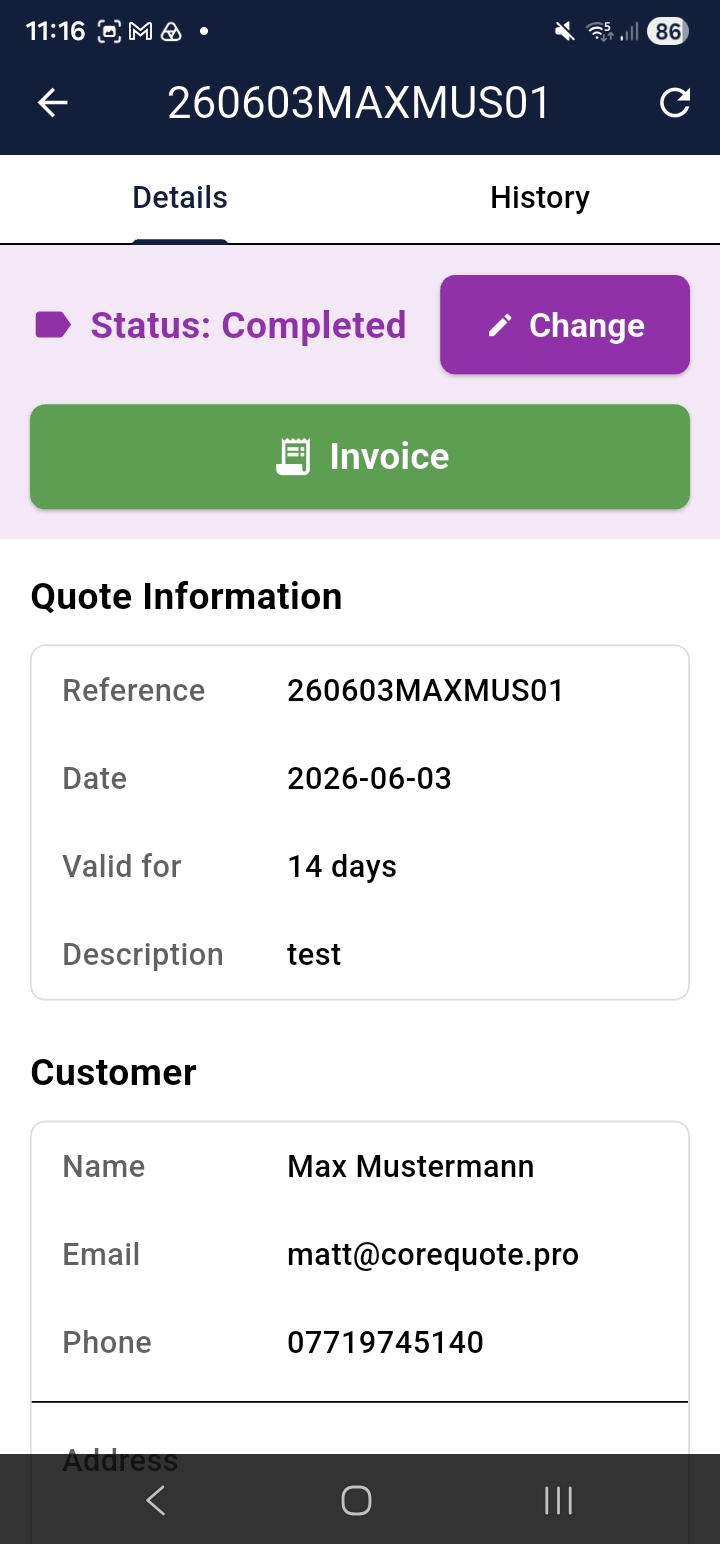
The fastest route. Open a quote that has a Completed status and tap Convert to Invoice. The invoice inherits all line items, customer details, and your company information — no re-entry needed.
Creating an Invoice Directly
From the home screen tap Create Invoices (or Manage Invoices → Create Invoice). The form works similarly to the quote builder — add a customer, line items, due date, and payment terms.
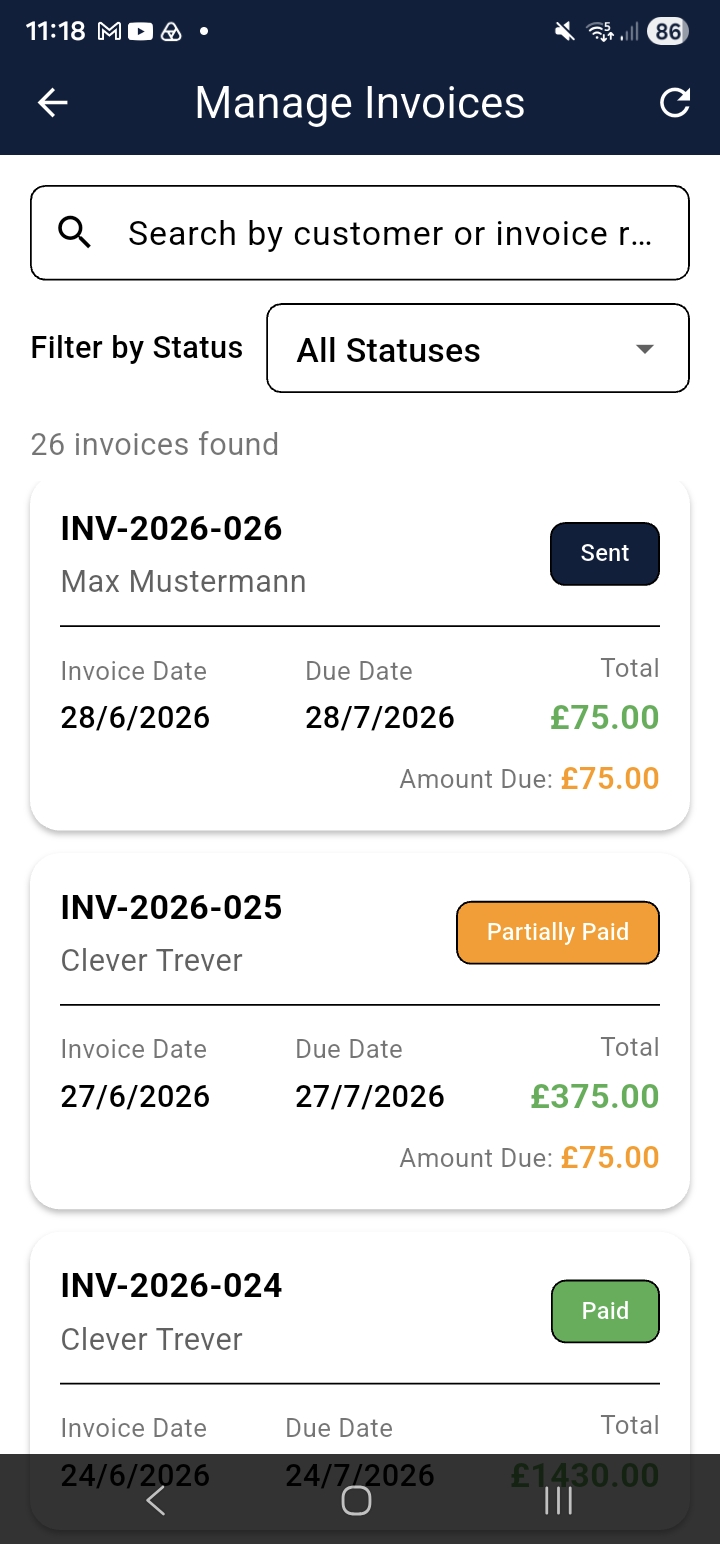
Invoice Statuses
- Draft — not yet sent
- Sent — issued to the customer
- Part Paid — one or more payments recorded, balance outstanding
- Paid — fully settled
- Overdue — past the due date with an outstanding balance
Sending an Invoice
From the Invoice Detail screen, send by email or WhatsApp in the same way as a quote. The customer receives a PDF showing line items, totals, your banking details, and payment instructions.
Recording Payments
Open an invoice and tap Add Payment. Enter the amount, date, payment method, and an optional reference. CoreQuote updates the outstanding balance and status automatically. Multiple part-payments are fully supported.
cq-help-invoices-03-payment.png