
📹 Video Guide — Managing Quotes
Managing & tracking your quotes
🎬Uploading soon
What your customer sees: approving a quote
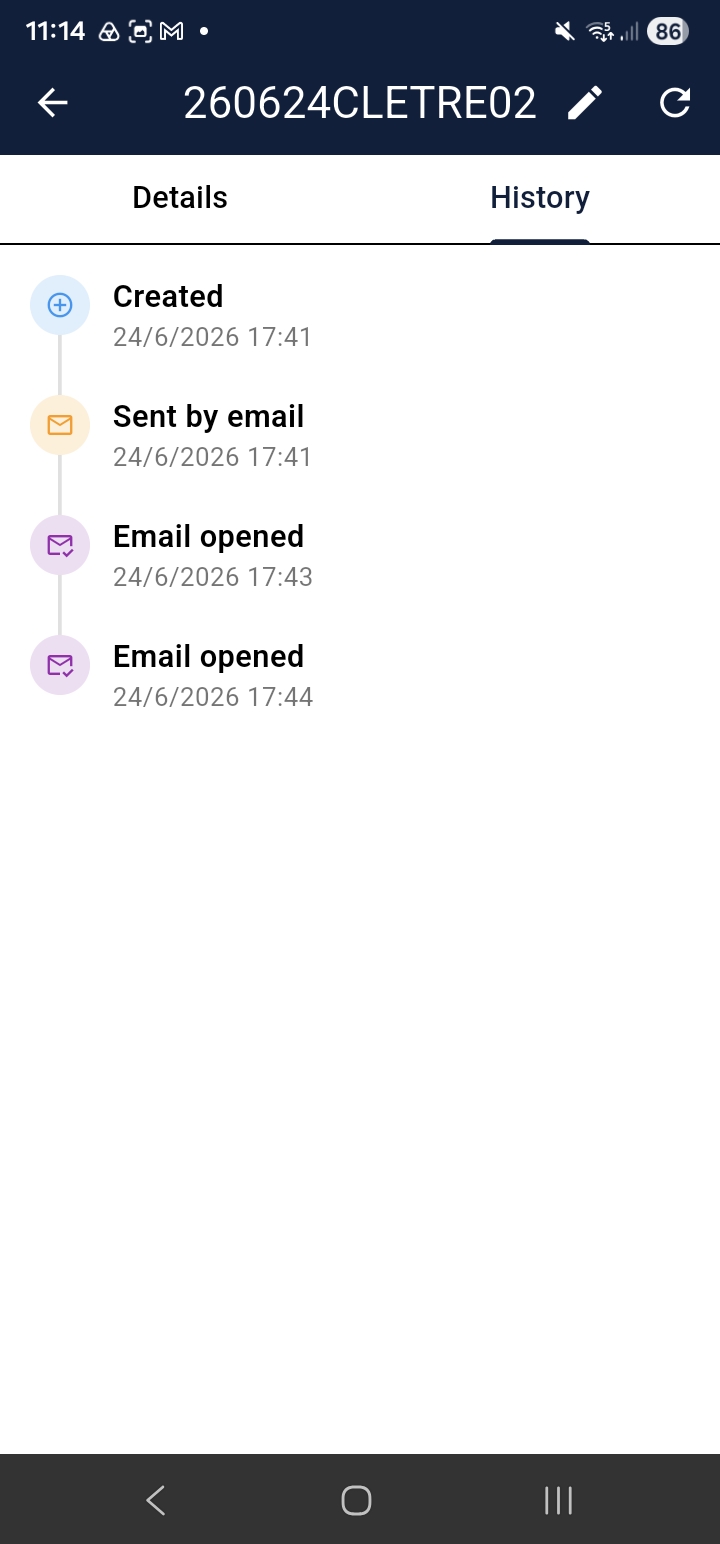
Quote history & audit trail
Managing Quotes
Tap Manage Quotes from the home screen to see all your quotes. Each quote shows its status at a glance.
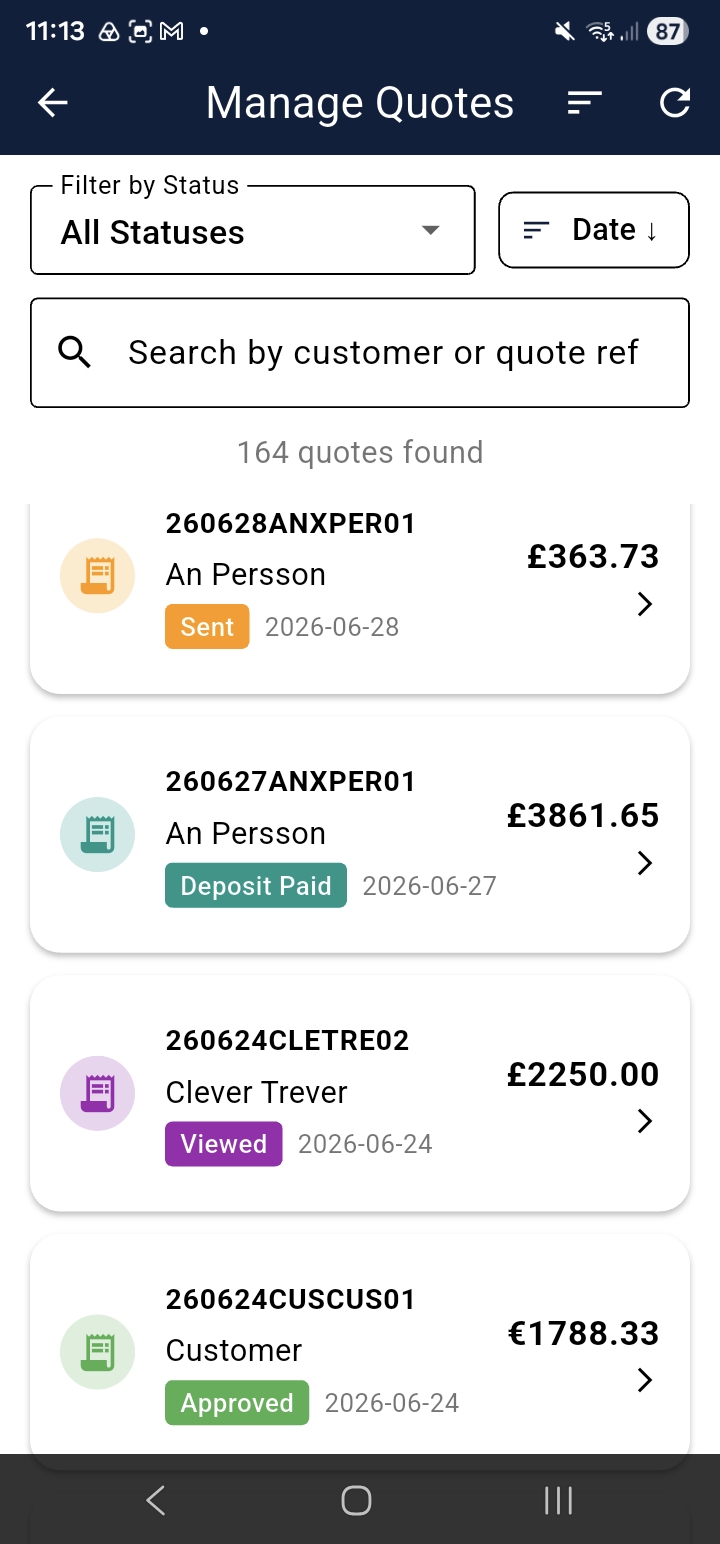
Quote Statuses
- Draft — saved but not yet sent
- Sent — emailed or shared with the customer
- Viewed — customer has opened the quote link
- Approved — customer has accepted the quote digitally
- Changes Requested — customer has asked for amendments
- Expired — the valid period has passed
- Declined — customer rejected the quote
- Completed — the job has been done
- Invoiced — quote has been converted to an invoice
💡 Tip: Filter quotes by status using the filter icon at the top of the list. Tap any quote to open its detail view.
Editing a Quote
Tap a quote to open it, then tap the pencil (edit) icon. Sent quotes can still be edited — the customer sees the updated version when they next open their link. Editing a sent quote resets its status to Sent.
📱 Screenshot: Quote detail screen with pencil edit icon highlighted
cq-help-mquotes-02-edit.pngCustomer Approvals & Change Requests
Customers view your quote via a web link in their browser. From there they can:
- Approve — digitally accept the quote. Status updates to Approved and both parties receive a PDF confirmation.
- Request Changes — type comments requesting amendments
When a change request arrives you receive an email notification and the quote status changes to Changes Requested. Open the quote, review the comments, then update the quote or respond directly.
📱 Screenshot: Customer-facing quote approval screen — this is what your customer sees
cq-help-mquotes-03-approval.png