
Creating & Sending Quotes
CoreQuote is built around one goal: getting a professional, branded quote into your customer’s hands as fast as possible — before you’ve left the drive. Send quotes in seconds with CoreQuote!
📹 Video Guides — Creating Quotes
Part 1: Creating your first quote
Part 2: Multi-line quotes & sending options
Part 4: Tips & shortcuts
🎬Coming soon
Step 1 — Add a Customer
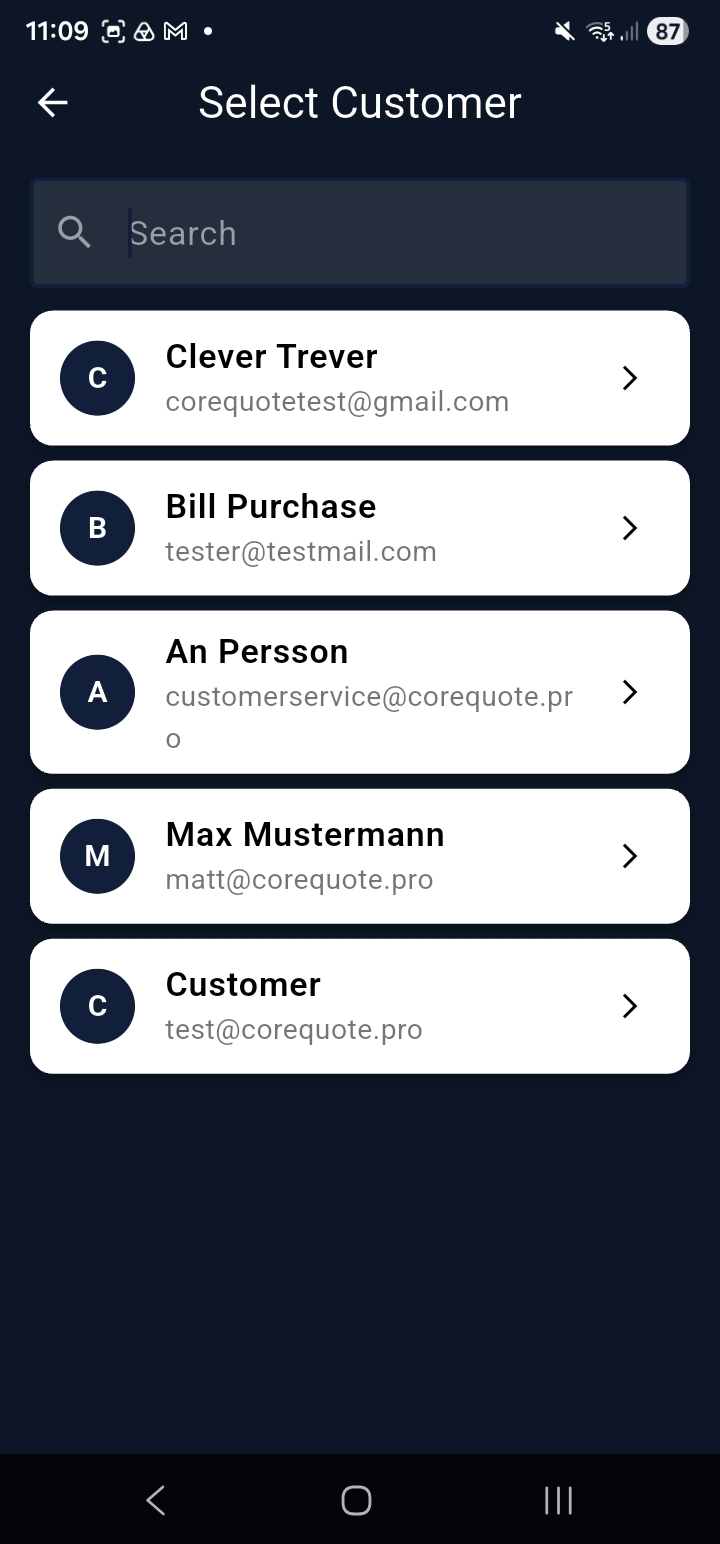
Tap Create New Quote from the home screen. The first step is selecting a customer.
- Existing customer — search your directory by name, email, or company
- New customer — tap New Customer and enter name, email, phone, and address
- Scan a letterhead or business card — point your camera at a card and CoreQuote fills in the details automatically Pro Max
Step 2 — Location of Works
Optionally set where the work will be carried out. Options:
- Same as customer address
- Enter address manually
- GPS — Street Address — auto-fills from your current location Pro Max
- GPS — Exact Coordinates Pro Max
- Scan Address — point your camera at a letterhead or sign Pro Max
Step 3 — Quote Lines
Add one or more lines to build up the quote total. Each line can be:
- Material — select from your materials library; quantity and unit price auto-fill
- Rate (Labour) — select a saved rate; choose hourly or daily and enter quantity
- Product — a fixed-price bundle from your library (e.g. Full Boiler Service)
- Custom — type any description, quantity, and price from scratch
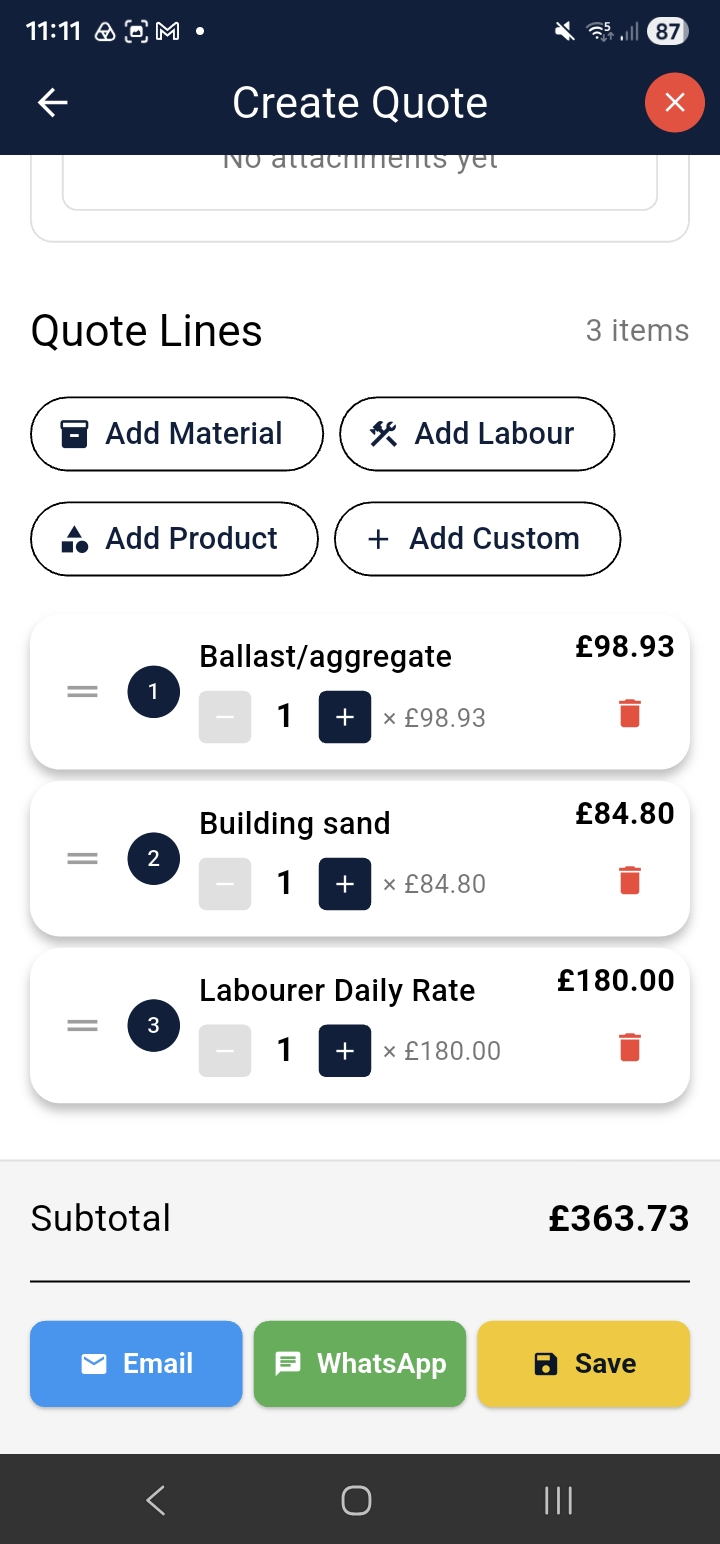
💡 Tip: You can mix material, labour, and custom lines in a single quote. Build your pricing library first to speed up quoting dramatically.
Step 4 — Quote Details
Below the line items, complete:
- Description / Notes — a freetext summary of the job (appears on the PDF)
- Valid Days — how long the quote stays open (default 30 days)
- Attachments — add photos or documents Pro Max
- VAT / Tax — applied automatically if enabled in Manage Company Pro Max
Saving and Sending
Tap Save to store the quote as a draft. From the Quote Detail screen you can then:
- Send by Email — CoreQuote generates a branded PDF and emails it to your customer
- Send by WhatsApp — share the PDF link via WhatsApp
- Share Link — copy a web link so the customer can view the quote in their browser
- Download PDF — save the PDF to your device
📱 Screenshot: Quote detail screen with Send, WhatsApp, Share Link and Download options
cq-help-quotes-03-sending.png💡 Tip: Your customer receives a clean, branded PDF showing your company details, logo, line items, totals, and T&Cs.